Mini Game
- For purists, minigames have no place in a visual novel game. But minigames do add spice to your novel, especially if the minigames are integral part of the story.
- Here, I'll teach you how to create a minigame for your visual novel using cform and macros.
- Visual novel players are not arcade gamers or MMORPG players (though they probably play those as well). With visual novels, you want a laid back, select-and-click type of play. One that doesn't put you at the edge of your seat while banging on your keyboard or touch screen. Or one that you could leave for a moment to attend to something (maybe have a cup of coffee) and not find your character dead when you return.
- For this type of play, a turn-based game seems ideal. You can have a turn-based RPG or even a player-vs-computer card game.
- Let's choose the classic tic-tac-toe instead, vn-Canvas version.
- To start with, let's establish the rules. To make everything simple for the purpose of this tutorial,
- Player always start first.
- Player uses "X", computer uses "O".
- Player and computer alternate turns.
- First to make three in a row wins.
- Computer has only one level: dumb.
- Let's also make the graphics. We'll need sprites for the grid, and the "X" and "O" marks. Optionally, let's make a highlighted "X" and "O" graphics to display when the player or computer wins.
- Let's layout the grid and sprites on our stage. To make the grid interactive, we'll add nine transparent buttons on the
grid that the user can click. NOTE: see how the minigame cform construct looks very much like that of the map cform.
t3 = [ label, "t3", // for tic-tac-toe overlay, {src:"white"}, label, "loop", cform, ["tictactoe", true, picture, {name:"grid", x:190, y:75, frames:["res/grid.png"]}, button, {name:"g0", x:193, y:73, w:100, h:100, base:"transparent", link:[macro, {clicked:0}], showText:false}, button, {name:"g1", x:309, y:73, w:100, h:100, base:"transparent", link:[macro, {clicked:1}], showText:false}, button, {name:"g2", x:425, y:73, w:100, h:100, base:"transparent", link:[macro, {clicked:2}], showText:false}, button, {name:"g3", x:193, y:189, w:100, h:100, base:"transparent", link:[macro, {clicked:3}], showText:false}, button, {name:"g4", x:309, y:189, w:100, h:100, base:"transparent", link:[macro, {clicked:4}], showText:false}, button, {name:"g5", x:425, y:189, w:100, h:100, base:"transparent", link:[macro, {clicked:5}], showText:false}, button, {name:"g6", x:193, y:307, w:100, h:100, base:"transparent", link:[macro, {clicked:6}], showText:false}, button, {name:"g7", x:309, y:307, w:100, h:100, base:"transparent", link:[macro, {clicked:7}], showText:false}, button, {name:"g8", x:425, y:307, w:100, h:100, base:"transparent", link:[macro, {clicked:8}], showText:false}, ], jump, "loop", cform, "close", ]; - The grid was defined simply. The topmost elements are named, from left to right, g0 to g2. The middle row consists of elements g3 to g5. The bottom row consists of elements g6 to g8. These then are arranged like the 3x3 matrix of a regular tic-tac-toe.
- When a grid element (button) is clicked, the macro "clicked" is called with parameter identifying which button was clicked.
The macro then calls other functions that effectively controls the flow of the game.
function clicked(key) { game_turn(1, key); // 1 is human player check_win(1); // check if human wins var newkey = computer_turn(); if (newkey != -1) game_turn(2, newkey); // 2 is computer player check_win(2); // check if computer wins } - To further explain it: Let's assign 1 as the human player and 2 as the computer player. On click of a button, we tell "game_turn" that a "key" is clicked by player 1. Then we let "check_win" see if player 1 wins. If not, we let player 2 (computer) take its turn, we tell "game_turn" about "newkey" by player 2. Then we again let "check_win" to determine if player 2 wins. Simple enough?
- Before we proceed, we need to define two global variables: the first determines what is on our tic-tac-toe board, the second lists
all possible winning combination. (I know, I know, that is a brute force method of doing it, but for this tutorial, let's make it
simple and easy to understand.)
// our tic-tac-toe grid is defined as a 9-element array var t3_grid = [0,0,0,0,0,0,0,0,0]; // 0: empty // 1: human, filled with X // 2: computer, filled with 0 // other: dummy value var win_combinations = [ [0,1,2], // top row [3,4,5], // middle row [6,7,8], // bottom row [0,3,6], // left column [1,4,7], // middle column [2,5,8], // right column [0,4,8], // back diagonal [2,4,6], // forward diagonal ]; - Now let's see what "game_turn" does. It handles both human and computer turns. Basically, it puts an "X" or
an "O" on our board, updates our "t3_grid" aray, and clears the button so it won't be clickable again.
function game_turn(player, key) { var obj = Helper.getControl("g"+key); var sprite = new Image(); if (player == 1) // it's human's turn sprite.src = "X.png"; else if (player == 2) // it's computer's turn sprite.src = "O.png"; // change all sprites for the button Stage.layers[4][obj].sprites[0] = sprite; // base image Stage.layers[4][obj].sprites[1] = sprite; // hover image Stage.layers[4][obj].sprites[2] = sprite; // clicked image Helper.addEvent(sprite, 'load', function() { Stage.layers[4][obj].redraw = true; }, false); sprite = null; // remove the link, so it will no longer be clickable Stage.layers[4][obj].link = null; // update our grid array t3_grid[key] = player; } - At this point, when we click on the grid, we should see our X's on the board. But what about the computer? On the next step, we'll add a little intelligence, albeit dumb intelligence, to our opponent.
- Our opponent, the computer, takes its turn after ours. This is handled by the macro "computer_turn". As mentioned, it is quite dumb.
You could try improving his intelligence by modifying this. ;)
function computer_turn() { // make the computer dumb, i.e. no intelligence // just find an empty space. var empty = false; for (var i in t3_grid) { if (t3_grid[i] == 0) { empty = true; break; } } if (!empty) return -1; // there's at least one space that's empty, find it! var key = Math.round(8*Math.random()); while (t3_grid[key] != 0) key = Math.round(8*Math.random()); return key; } - That is all it is doing. Finding an empty space to put its "O"s. As a form of safeguarding, we added some checking to determine if there are still spaces available. Otherwise, our computer will run amuck trying to find a space even when all has been occupied already.
- So that leaves us with one last routine to do: How to determine the winner? We put everything in "check_win" macro, plus a little more
fancy display to show who won.
function check_win(player) { // brute force checking for (var i in win_combinations) { if ((t3_grid[win_combinations[i][0]] == player) && (t3_grid[win_combinations[i][1]] == player) && (t3_grid[win_combinations[i][2]] == player)) { // player wins // display winning row var obj0 = Helper.getControl("g"+win_combinations[i][0]); var obj1 = Helper.getControl("g"+win_combinations[i][1]); var obj2 = Helper.getControl("g"+win_combinations[i][2]); var sprite = new Image(); Stage.layers[4][obj0].sprites[0] = sprite; // base image Stage.layers[4][obj0].sprites[1] = sprite; // hover image Stage.layers[4][obj0].sprites[2] = sprite; // clicked image Stage.layers[4][obj1].sprites[0] = sprite; // base image Stage.layers[4][obj1].sprites[1] = sprite; // hover image Stage.layers[4][obj1].sprites[2] = sprite; // clicked image Stage.layers[4][obj2].sprites[0] = sprite; // base image Stage.layers[4][obj2].sprites[1] = sprite; // hover image Stage.layers[4][obj2].sprites[2] = sprite; // clicked image if (player == 1) // it's human's turn sprite.src = "res/X_win.png"; else // it's computer's turn sprite.src = "res/O_win.png"; Helper.addEvent(sprite, 'load', function() { Stage.layers[4][obj0].redraw = true; Stage.layers[4][obj1].redraw = true; Stage.layers[4][obj2].redraw = true; }, false); sprite = null; // DO CLEANUP // remove all links from layers, so none will be clickable // fill t3_grid with dummy value so it can no longer be filled for (var i in t3_grid) { if (t3_grid[i] == 0) { Stage.layers[4][Helper.getControl("g"+i)].link = null; t3_grid[i] = 3; } } break; } } } - Basically, it goes thru all the winning combinations to see if the player who made the last move was able to get one of those combinations. If nobody has, then game play continues. If one of the player did, then we change the winning combination's sprites to display it . Then we do a final cleanup, so that we'll know that indeed the game is over.
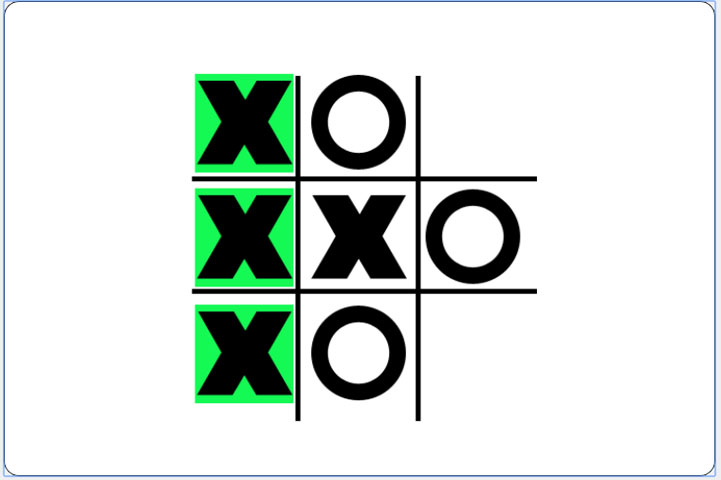
- A screenshot of the working tic-tac-toe minigame is shown below. Hope you were able to get some pointers on how to incorporate a
minigame in your visual novel. :)
- Here's a link to the finished minigame: TIC-TAC-TOE
- Of course, you're not limited to simple tic-tac-toe games. Any single-player (I haven't seen a multiplayer visual novel game yet), turn-based game should be alright (arcade games is possible also, but I think that's pushing it).
- You can have card games, board games, or if you're up to it, even chess.
- Below is a HI-LO game with a volleyball theme that I'm working on.

- I know, I know, that seems over the top, but I did say use your imagination. ;)